Slider[Style1]

Style2

Style3[OneLeft]

Style3[OneRight]

Style4

Style4

Facebook wants to bring free web access to 100 countries by end of year


BARCELONA — Facebook told a few members of the press this week that its Internet.org initiative, which aims get more of the world's population online, is on track for an aggressive expansion.
Chris Daniels, VP of Internet.org at Facebook, said the company plans to expand into 100 countries by the end of the year. The program is currently set up in six countries — Zambia, Tanzania, Kenya, Ghana, Colombia and India — and has helped more than 7 million people access health, employment and local information services without data charges.

Internet.org, which launched in 2013, is a Facebook-led program that works with data providers in local markets to offer free web access to people who otherwise couldn't get online. The goal is to introduce people to basic services — like Wikipedia, job and health sites and of course, Facebook — and have them see the value of the Internet and ultimately, purchase a more premium data package.

"The ambitious goal this year is to roll it out to 100 [countries]," Daniels said. "We don't want to focus so much on the number, but we want this to spread to additional countries, operator groups and... see more people coming online, buying data and voice and SMS bundles. The number is indicative of our ambitious goal."
The overall objective, Daniels said, is "to bring connectivity to the entire world."
Mashable got a little hands on time with the Internet.org app offered in remote countries and noticed the Facebook site is a stripped down version of what we're used to seeing. While users can connect with friends and write on each other's walls, they are prompted to upgrade to a paying data plan to see videos and photos. This also ensures that only a thin layer of data is being used and doesn't present capacity issues for the operating partners.


And the effort is working. Countries that offer the Internet.org app have seen a 40% jump in new data customers for local operators. For example, the amount of people accessing Colombia's Tigo network has increased 50% and grew smartphone sales 10 times in Tanzania as a direct result of Facebook's initiative. Facebook works with the government in each country to select the sites available on the app.
Earlier this week, Facebook CEO Mark Zuckerberg said during a Mobile World Congress keynote that the company is "working on" building drones, lasers and satellites as a part of an initiative to the two-thirds of the world not online. More than 90% of the global offline population lives in developing countries, according to Facebook.

Make music while sculpting a face using Oculus Rift and Leap Motion


What if you could make music while sculpting a human face with your hands in virtual reality?
A new experiment, made available on the web by Mozilla's VR team via the WebVR API, aims to show us exactly what that looks like when using VR in a Firefox browser.
Developed by Isaac Cohen (aka Cabbibo), Rainbow Membrane is a virtual reality experience that allows you to produce sound by manipulating a virtual face, and the walls around that face. The dynamic is made possible by pairing an Oculus Rift (for immersive visuals) with a Leap Motion (for hand gesture detection).
Using those hardware components with the software, the user is able to push, pull and mold the virtual environment to produce any number of psychedelic visual flourishes as the software's audio feature produces musical tones corresponding to your "touch."

Rainbow Membrane from Cabbibo on Vimeo.

HP's Spectre x360 is the sexiest 2-in-1 ultrabook convertible ever

It's a great year to buy a new PC. Not only is Windows 10 coming later this year, but PC makers are stepping up their design game. Dell's XPS 13 is a real winner and now HP's joining the premium ultrabook game with its new Spectre x360.
HP's x360 is a 13.3-inch 2-in-1 hybrid laptop/tablet running Windows 8.1 that imitates Lenovo's Yoga 2 Pro. Like its rival, the 3.26-pound x360 can be folded in four modes: laptop, tablet, tent and stand mode.
But whereas Lenovo's ultrabooks are made from plastic, HP went the premium route with a precision-machined aluminum frame and jewel-cut edges. The result is a design that's gorgeous and sturdy.
The only plastic you'll find on this baby is the back-lit keyboard, which is full-sized and terrific to type on. The glass trackpad is extra wide, which is great for multitouch gestures, but I noticed some real lag while two-finger scrolling in Internet Explorer .


There are two IPS touchscreen resolutions: Full HD (1,920 x 1,080) and Quad HD (2,560 x 1,440). I didn't get a chance to look at the Quad HD model,but the full HD model I'm currently testing looks pretty excellent  and has vivid colors, despite how reflective it is : 
The x360 isn't just a beautiful 0.62-inch slim body. HP made sure that it could also keep up with the latest and greatest ultrabooks with Intel's fifth-generation "Broadwell" Core processors that start at 2.2GHz and Intel HD graphics 5500.
Here are the four configurations:
  • Intel Core i5 processor, 128GB SSD, 4GB RAM, full HD display — $899.99
  • Intel Core i5 processor, 256GB SSD, 8GB RAM, full HD display — $999.99
  • Intel Core i7 processor, 256GB SSD, 8GB RAM, full HD display — $1,149.99
  • Intel Core i7 processor, 512GB SSD, 8GB RAM, Quad HD display — 1,399.99

HP also says it put a lot of work into boosting Wi-Fi reliability when the x360 is in its different modes, a problem other convertible ultrabooks apparently suffer from.
Port-wise, there's plenty: Three USB 3.0 ports, an SD card slot, a full-size HDMI port and a MiniDisplay 1.2 port. Together, the two video ports can drive two displays. You won't be able to do dual-screen gaming at any respectable settings with the Intel HD graphics 5500, but displaying two screens worth of websites and spreadsheets? Absolutely doable .
Battery life is up to 12.5 hours on a charge with "normal" usage. I haven't verified that claim yet, but so far the laptop's been able to squeeze out enough to last almost a full work day of browsing the web and watching videos. We'll have to do some more testing to see how the battery really holds up.

The x360 is available starting Sunday at HP.com. Best Buy will stock the laptop on March 15. The Quad HD model with 512GB of SSD will be available in April. HP's also selling a leather sleeve for $70 and the Active Pen stylus that'll work with its touchscreen for $45. 
I've been messing with the $999 model, which HP believes will be the one most people buy, and aside from the iffy trackpad, it's a pretty solid Windows 8.1 laptop. Stay tuned for our full review.

For Pros Who Need Power, The ZBook Is Tops


Professional users will pay a premium for certain features such as a 
sharper-than-normal screen or workstation-class graphics. The HP 
ZBook 14 has these features, packed within a highly mobile design 
that’s thinner and lighter than we’ve yet seen on a system of this type. 
Add in performance, battery life, and a terrific display, and you have 
an Editors’ Choice–winning professional-grade mobile workstation.


DESIGN AND FEATURES

The ZBook 14 looks very much like a 14-inch ultrabook, and that’s the point. It 
measures about 0.83 by 13.5 by 9.5 inches (HWD) and weighs 3.88 pounds, so 
it will blend in with other business ultrabooks rather than stand out like 
previous chunkier mobile workstations we’ve seen. It’s also much lighter than 
full-size business desktop replacement laptops such as the Dell Latitude E6540.
Metal is the finish of choice on the ZBook 14’s top lid
and keyboard deck, but the bottom lid is polycarbonate.

This is one of the ZBook 14’s strengths: The light,
removable lid provides tool-less access to the internal
components, primarily the system’s hard drive bay,
memory slots, and slots for accessories such as the
optional WWAN/4G mobile broadband module, which
is the only way to get GPS functionality. (Dual-band
802.11a/b/g/n Wi-Fi and Bluetooth 4.0 come
standard.) You can also remove the system’s 50Wh
battery, a feature that you won’t find in most ultrabooks
but that’s important if you regularly compute far away
from a power outlet or car charger.

The system’s components include an Intel
Core i7-4600U processor, 16GB of DDR3L memory (maxed
out), a 256GB SATA SSD (240GB usable), and an AMD
FirePro M4100 GPU. The system uses AMD Switchable
Graphics technology, so it can operate on the
processor’s HD Graphics 4400 integrated GPU when
you don’t need discrete-level performance.
One of the ZBook 14’s greatest strengths is its screen.
It’s a 14-inch 1,920-by-1,080 display, though some
competitors (such as the Retina display–
equipped 15-inch Apple MacBook Pro and
Toshiba Kirabook) feature higher-resolution
screens. Though the ZBook 14 is limited to
1080p, it trounces the other systems by
offering a matte-finish antiglare screen.


Users who need to perform scientific
tasks, do edits, and create content full
time may prefer the larger, more
pixel-dense screens for their day-today work,
but everyone else will be
fine with HP’s choice here. 
The ZBook 14 has ample external ports as well: four
USB 3.0 (one is a stay-awake charging port), a full-sized
DisplayPort, Ethernet (vital for business users), VGA,
Kensington lock, SmartCard and SD card slots, and a
docking port like those you’ll see on other HP EliteBook
laptops. DisplayPort enables multiple monitors
regardless, but the optional dock lets the ZBook 14
support up to five external displays.
The ZBook 14’s comfortable backlit chiclet-style
keyboard has a multitouch touchpad and a pointing
stick, each with its own set of physical mouse buttons
(though you can also use tap-to-click on the touchpad).
There’s no numeric keypad, however—if you need one,
look at larger laptops, such as HP’s ZBook 15 or the
Asus Zenbook VX51VZ-XB71.

Our review unit came with Windows 7 Professional
preinstalled, and includes discs for installing Windows
8 Pro. Because Windows 8 presently has few business
adherents, it’s not a huge deal that there’s no touch
screen, though you can configure your ZBook 14 with
one (something you can’t do with the ZBook 15). The
ZBook 14 comes with a three-year parts and
labor warranty.

PERFORMANCE

The ZBook 14 is, as you’d expect, quite
capable of creating multimedia
projects, but its best attribute is that
it is ISV certified and can work fine
as a supervisor’s machine in the
field. The 13-inch Apple MacBook
Pro was a smidge faster than the
ZBook 14 on Photoshop CS6 (4
minutes 27 seconds versus 6:28) and
Handbrake (1:09 versus 1:11), most
likely due to the MacBook’s slightly fasterclocked processor and speedier PCIe-based flash storage.

On 3D tasks, the ZBook 14 is closer to its peers. Its performance is on par with
that of the Dell Precision M4700 with its 2GB Nvidia Quadro K2000M GPU on
the 3DMark 11 test and our two game tests. True gaming cards, such as the
Nvidia GeForce GT 765M you’ll find in the Digital Storm Veloce, give the best
performance on 3D games and game tests, but the ZBook 14 is certainly capable
of displaying 3D CAD designs in real time as well as working in entertainment
development and testing.

One of the ZBook 14’s main strengths is its battery life. It lasted 6 hours 28
minutes on our battery rundown test, matching the larger Dell Precision M4700
to the minute. The ZBook 14’s big brother, the ZBook 15, only lasted 3:48.
If you’re looking for a nicely priced, full–Windows 7 mobile workstation and
value portability, the HP ZBook 14 should be at the top of your list. It has the
clear and glare-free studio-ready display that you’d expect from a professional
workstation, combined with an ultrabook’s portability and battery life. IT
serviceability is a big plus, especially if you have time-sensitive users who need
to get back to work right now. Any director, manager, or vice president in the
entertainment or engineering industries will be quite happy with the ZBook 14,
especially if they travel.

Use the Reminders app


Don’t forget a thing with Reminders, writes Lou Hattersley


Using your iPad for reminders and to-do lists is 
a great idea. You’re likely to have your iPad 
with you at all times so it just makes sense.
The rather aptly named Reminders app is here 
to help you with all your to-do lists. The Reminders 
app has some neat touches. Integration with Siri is 
just one of the great features of Reminders. It takes 
merely a few seconds to set up a new reminder 
using just a push of the Home button and your voice.
Additionally, you can use GPS to activate 
reminders when you leave or arrive at certain places. 
So, for example, your iPad could remind you to pick 
up some milk on the way home as you leave work.
Naturally, you can set your own time-sensitive 

reminders, too, and if you have a lot of reminders 
you can easily search through them. Reminders
can be sorted in a list or by date and you can see
a calendar view of all your reminders a month at
a time. If you’re using the iCloud service all your
reminders can be synced across devices. If you set
a reminder on your iPad it will show on your iPhone
and vice versa. If you’re cursed with the forgetful
gene, have no fear, the Reminders app is here. You’ll
never forget your wedding anniversary again. Here
we show you how to use it.

Step 1: Reminders app Open the Reminders app to add 

a to-do item to your list. Here
you’ll see all your reminders
and, if you’re using iCloud,
the account name used to
synchronise reminders.

Step 2: New reminder Tap on an empty line to create

a reminder and the standard
keyboard pops up. Type the
reminder and tap Return. To edit
it further, tap on the reminder
again.

Step 3: Dictate reminder 

If you don’t want to type your reminder, you don’t
have to. Tap on the microphone icon next to the
spacebar and simply speak your reminder. Tap

Done to enter it.

Step 4: Remind me on a day

To change the details about a
reminder simply tap on it and
tap on the Info (‘i’) icon. Tap
‘Remind Me On A Day’ to set
a day when you want the iPad
to alert you.

Step 5: Location-based reminders

You can have a reminder pop
up when you leave or arrive
somewhere. The iPad uses
GPS to track you, and when
you’re at the right spot it sends an alert.

Step 6: See your month 

You can see all your reminders in the month by
tapping the Scheduled item in the sidebar. This
screen lists all your reminders using the ‘Remind Me
On A Day’ setting.

Step 7: Search reminders 

If you can’t see the reminder you’re after, use search.
Tap on the search field in the top-left and enter the
item for which you are looking.

Step 8: Completed tasks 

Once you’ve completed a tasks, you just tick it o by
tapping the circle next to it. The task will be removed
from the list, but you can view it again by tapping
Show Completed.

How to transfer slowmotion video to a Mac


Lou Hattersley explains how to transfer slow-motion 
movies from your iPhone to a Mac

The iPhone 5s introduced an appealing new 
feature to the iPhone 5s: slo-mo (slow motion) 
video. In this tutorial we’ll show you how to 
record an eye-catching slow motion video, share 
the video with friends, transfer it to a Mac OS X 
computer or upload it to YouTube.
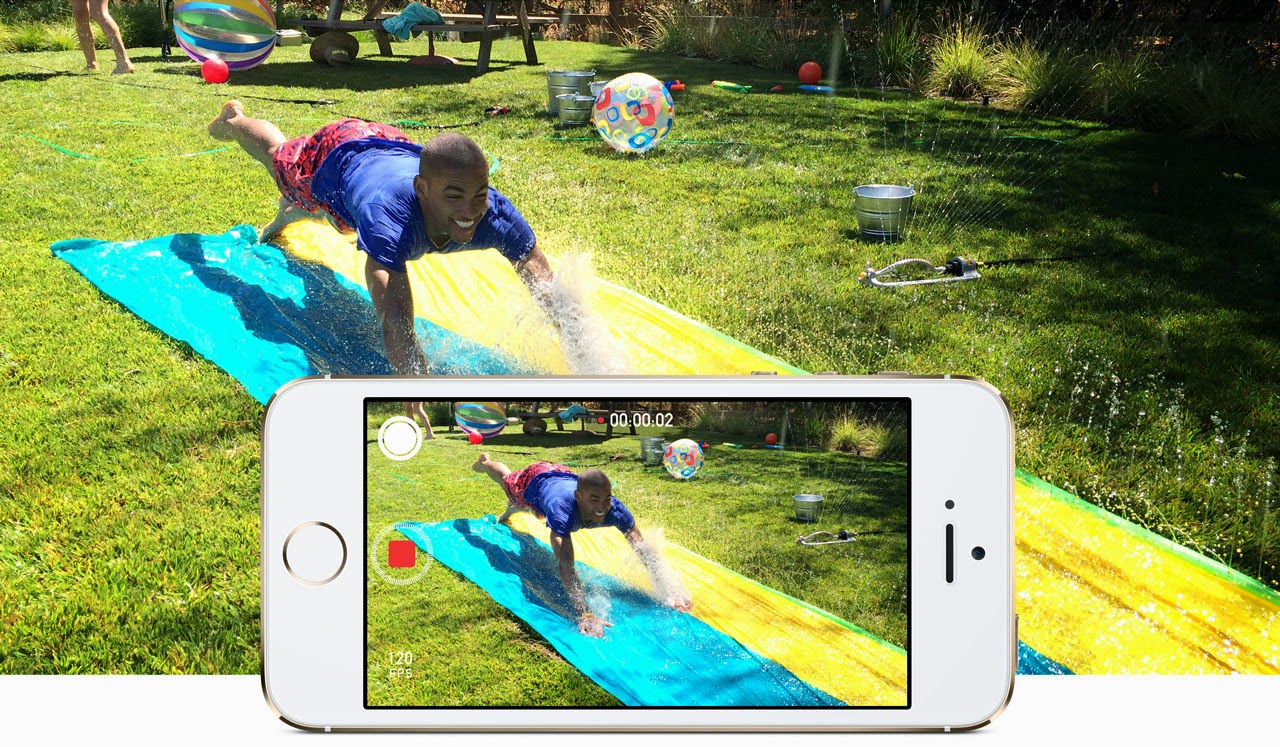
When recording a slo-mo video the iPhone 5s 
captures the scene at an extremely high speed 
(120fps) and then slows it down in the middle.
It’s perfect for recording action shots: like kids 
playing on swings, cats playing with toys or when 

you’re watching a sport event. By capturing the
video in slow motion you can really focus in on
the action. And it’s a neat party trick for iPhone 5s
owners. In this feature we’re going to take a look
at recording slo-mo video, and transferring the
video clip to a Mac.

Step 1: Record slo-mo video


Recording a slo-mo video is pretty easy. Open the
Camera app and slide your finger down the screen
so the Photo setting turns to video, now slide down

again to change the setting Slo-Mo (it will be marked
in yellow). The Camera app will now record the
video at 120fps, but play it at a slower rate. Tap on
the red Record button and capture some action; tap
the Record button again to finish capturing video.

Step 2: Play back

Now tap on the Camera Roll icon (bottom-right)
to view the video you’ve just recorded. When you
play back the video clip it’ll start normally, then
slow down in the middle, before speeding up
again to the end.

Step 3: Adjust the slo-mo e ffect


You can manually adjust the slo-mo settings to time
the slow motion e ffect to time it with the action you
recorded. Tap the screen on the video in Camera
Roll to bring up the onscreen controls. Underneath
The Video Preview bar is a Slo-Mo control bar made
up of small vertical lines. The area in the middle
(where the lines are spaced apart) is the slo-mo
part. You can drag the two black lines left and right
to determine the part where the video will enter
slo-mo mode, and return to normal playback.

Step 4: AirDrop the video

Bring up the onscreen controls and tap on Share in
the bottom-left of the screen. Ensure the video has
a blue tick in it and tap on Next and pick a sharing
method. It’s usually best to use AirDrop to share
video clips between di fferent iOS devices.

Step 5: Sharing the video

If you want to pass the video on to somebody, you
can send video as a Message, Mail or iCloud (as well
as upload to YouTube or Vimeo). Your options may
be limited with longer videos if the file size is too big
for email. But if the video is small enough to send
via email you can always send it to your own email
address and download it from Mail on the Mac.

Step 6: Transfer the video to iPhoto

If you want to import the video to the Mac, then it’s
best to use either iPhoto or Image Capture. Open
the iPhoto app and select the iPhone 5s in the
sidebar now find the video clip in the main window
and tap on Import Selected. You get the option of
leaving the video on the iPhone or removing it. It’s
up to you but eventually you’ll end up with a full
iPhone if you leave video on it.

Step 7: Import a clip using Image Capture

If you work with photos and videos a lot you should
take a look at the Image Capture app (located
in Applications). This enables you to browse the
images and video on an iPhone (or other device) and
copy them directly to the Finder. You can simply drag
the video from the main window to the desktop. Or
you can choose a location using the Import to dropdown menu and click on Import or Import All.

Step 8: Play the video

The video will be a file on the desktop (or other
location) normally named something like IMG_01234.
MOV. You can double-click the video to play it in
QuickTime. Notice that unlike normal videos there
is an extra blue button marked slo-mo. You can click
this to turn the slow motion e ffect on and off .

Everything you need to know about 4G


Lou Hattersley provides an in-depth guide to 4G

4G is the fourth-generation of mobile internet, 
and when you buy an Apple product that 
connects to mobile internet you’ll be o ffered 
the choice of a 4G or 3G service. But what is 4G and 
is it worth paying for?
Many of our readers have a host of questions 
about the new service: Is 4G tangibly any better 
than 3G? Is 4G worth paying extra for? How much 
more does 4G cost over 3G? Who has the best 4G 
service, and so on. All of these are valid questions, 
so here is our guide to 4G.

What is 4G?

4G is the new cellular data connection (the bit 
that gives you mobile internet) and it replaces the 
reasonably well-known 3G. They stand for fourth generation 
and third-generation respectively. This 

4G video will help explain the new service.

Is 4G better than 3G?

4G is categorically better than 3G: what it o ffers is
improved speed. But how much faster is 4G than
3G really? When you start to road test the new
service it’s not so clear.
Technically 3G o ffers a theoretical download
speed of 100MB/s and 4G o ffers a theoretical
top-speed of 1GB/s. So on paper, the 4G internet
network is 10x faster than the 3G network it wants
to replace. However, you’ll never see those speeds
because the speed also depends on the power
emitting from the cellular tower; your distance from
the tower; and how many other people are using
same cell phone tower as you.
In central London you’ll typically see between
5MB/s and 10MB/s using an iPhone on a 3G
connection. USwitch.com has a handy map showing
reported speeds on di fferent services around the
country – tinyurl.com/kmc8ucx.

How fast is 4G?

The speed you’ll get on a 4G iPhone is undoubtedly
faster than the 3G counterparts. Speeds of around
65MB are routinely reported in central London.
Which is nothing to be sni ed at when compared
to the regular speeds shown. Two things are worth
noting, though. First of all, the latest versions of
the iPhone have Dual Carrier HSDPA. (DC-HSDPA).
This essentially combines two high quality 3G
connections into one. So we have seen speeds
averaging 20MB/s on an iPhone 5 and iPhone 5s.
While 65MB/s is categorically faster than 20MB/s

on the iPhone and iPad, you won’t notice much
di erence between the two when doing day-to-day
tasks: email, web browsing, running most apps;
even online video has maxed out well before that
point. Where you might fi nd an improvement with
the faster speed is when using cloud services like
iCloud, Dropbox, and so on. When sharing and
syncing larger fi les the faster data connection will
enable you to work faster
Remember that 4G isn’t just faster than 3G, it’s
also more reliable. Because the service is more
powerful it typically o ers a more stable connection.

How much does a 4G service cost?

When 4G fi rst launched in the UK the only provider
was the, then new, company EE. This initially
charged a premium price for its 4G service. Because
of this 4G has something of a reputation for being
high priced. This isn’t necessarily the case, though,
and pricing has fallen in line. If you have an unlocked
iPad, you can get the following:

Three: 1GB per month, £7.50

EE: 3GB per month, £16

Vodafone: 1GB per month, £10

O2: 1GB per month, £10

Bear in mind that these deals tend to change
fairly quickly as the companies react to each other’s
pricing strategy. So keep an eye on the various
companies.

Will I get a 4G connection in my area?

The service you get in your area depends largely
on which supplier you go with. I started setting
its network up fi rst, so it has the widest area of
coverage. Vodafone and Three are still rolling
out their network, although the situation is rapidly
improving. If you want to see what the coverage
is like in your area you can use a services online
coverage checkers.
Is 4G worth paying for?
It largely depends on your area, but we think 4G is
worth paying the extra for. Especially if you’re on
the Three network which has rolled it into its current
pricing strategy (so you’re not really being asked
to pay extra). But it does depend on how much 4G
is in your area, if you live or work in an area with a
good 4G connection you’ll will benefi t from the new
service. But if not you’ll end up paying extra just to
use the same 3G connection as before.

Finally Hands On With The iPhone 6


The iPhone 6 and 6 Plus represent Apple’s new flagship products, and they’re a big change from what came before: The 4.7-inch 6 has a new, Retina HD resolution display, and smooth, rounded edges and a smooth transition between the actual glass protecting the screen and the rest of the casing. It also has an improved camera, and what might be its most exciting super-power: Apple Pay, which uses NFC tech to let the device authorize payments quickly using Touch ID as an authentication step. The 6 Plus has all that, plus optical image stabilization and an even bigger battery.

iPhone 6

In the hand, the iPhone 6 definitely feels noticeably larger, but what’s remarkable is that it doesn’t feel significantly bulky. The rounded sides and thin, lightweight chassis kind of harken back to older devices, in fact, like the iPhone 3GS and earlier, but the more premium materials used here add another dimension of quality.


Reaching across the device to tap the top corner isn’t uncomfortable, despite the extra screen real estate, and the screen resolution is truly impressive. The additional pixel density makes an instantly observable difference, even if it should technically exceed the ability of the human eye to discern, if you buy the rhetoric around the original Retina display tech. Whether it’s improved resolution, or better color rendering and display lighting, the effect is one of an image that looks artificial – as if they’d pasted a demo screen photo on top of the showcase devices.


Playing with the new camera reveals the improvements there are also impressive. The iPhone 6 gets all the new features besides optical image stabilization, including slow motion video at 240 FPS, which is two times faster than the iPhone 5s (and so two times slower when played back). The camera’s autofocus is fast and effective thanks to the addition of phase detection, and it no longer highlights the point of focus, which it doesn’t really need to because of its improvements.
iPhone 6 Plus
The 6 Plus is a device that isn’t for the faint of hand: its 5.5-inch diagonal face is definitely something users will have to get used to. The process is made easier thanks to the introduction of a new mode that lets people use all aspects of the OS, including apps and the Home screen, one-handed simply via a double touch (not press) of the Home button, which shifts everything down into thumb range.
The 6 Plus also offers a useful new landscape view in most apps in exchange for the bigger size – you get an inbox while looking at Messages or Mail, for instance, and detailed views in most system software. It’s a big advantage for working through stuff quickly, and is comparable to what the iPad offers in many ways. 

Apple’s optical image stabilization also does appear to make for big improvements in the quality of captured images, though we’ll have to do more extensive testing to really suss out how much of a difference there is between this and the image stabilization offered on the iPhone 6.
source : Techcrunch


Top